Getting Started with Rexultz
Rexultz brings your affiliate networks, product feeds and SEO tools together in one fast platform. This guide takes you from a brand-new account to a live product feed earning on your site — in about 15 minutes.
Before you begin
You'll need two things:
- A website or page where you publish affiliate content (any CMS — WordPress, Shopify, a custom site, even a link-in-bio page).
- At least one affiliate network account. Rexultz supports Partner-ads, Awin, Adtraction, AddRevenue and Amazon, with more added regularly. Don't have one yet? You can create network accounts directly from Rexultz in a few clicks.
No credit card is required to start — every plan includes a 30-day free trial.
Step 1 — Create your account
- Go to app.rexultz.com and sign up with your email.
- Confirm your email address and log in — you'll land on your dashboard.
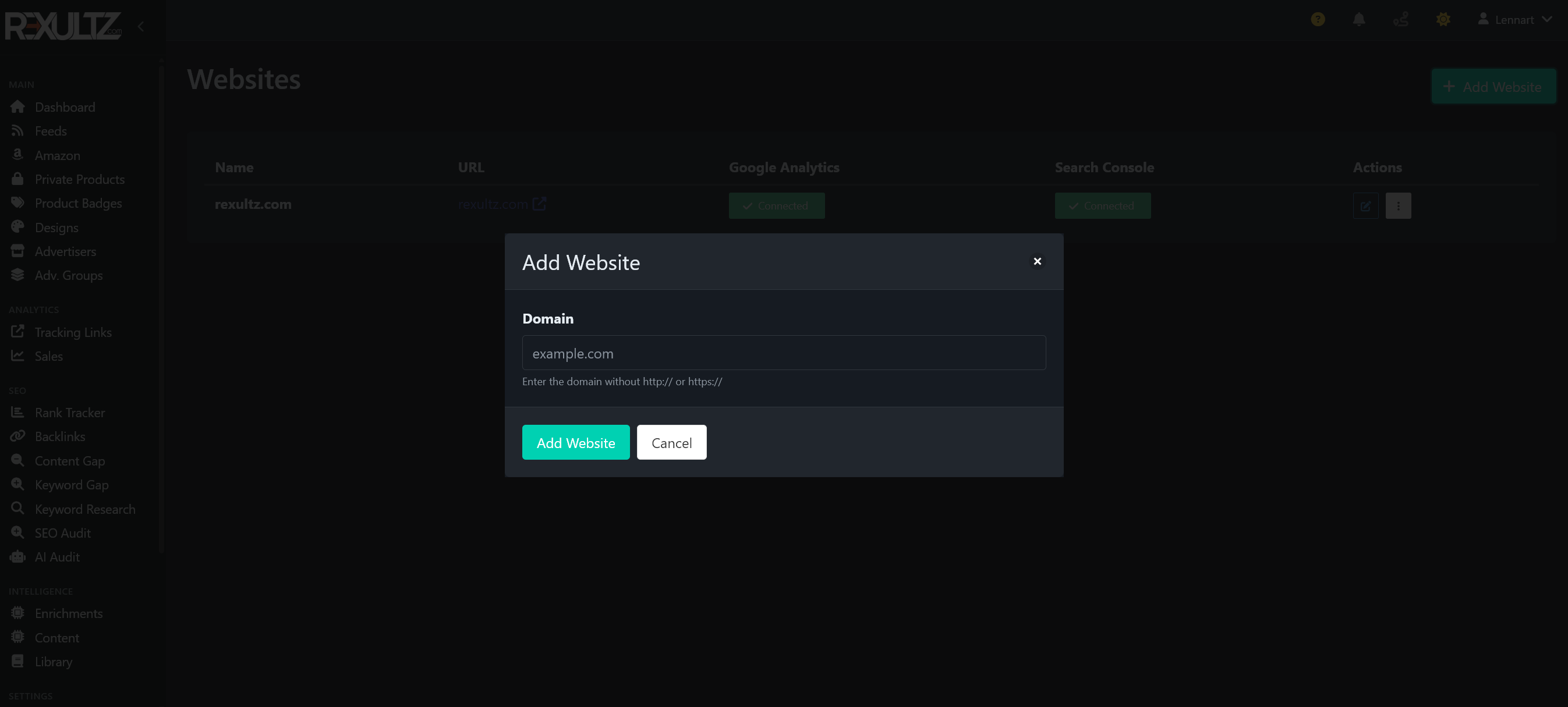
- Add your website under Sites so Rexultz knows where your feeds will live.
Step 2 — Connect an affiliate network
Networks are where your products and commissions come from. Connecting one lets Rexultz pull in advertisers and their full product catalogue.
- Open Networks and choose a network (e.g. Partner-ads or Awin).
- Enter your network credentials or API key. If you don't have an account yet, use the "Create account" option to set one up.
- Rexultz syncs your approved advertisers automatically — across all connected networks in one unified list.
See the full list of supported networks and what each offers on the Networks page.
Step 3 — Approve advertisers & group your favourites
Once a network is connected, you'll see every advertiser (merchant) you're approved for. From the Advertisers overview you can:
- Request approval for new advertisers.
- See EPC and commission info side by side across networks.
- Organise your favourites into Advertiser Groups so building feeds later is fast.
Step 4 — Build your first product feed
A feed is a curated set of products you'll display on your site. You have two modes:
Manual mode
Hand-pick exactly the products you want and combine results from multiple searches. Best for comparison posts and "best of" lists where control matters.
Automatic mode
Set criteria once (advertiser, category, keyword, price range) and the feed auto-updates as products, prices and stock change. Set it and forget it.
Use Live Preview to see exactly how the feed will look before you publish — no guesswork.
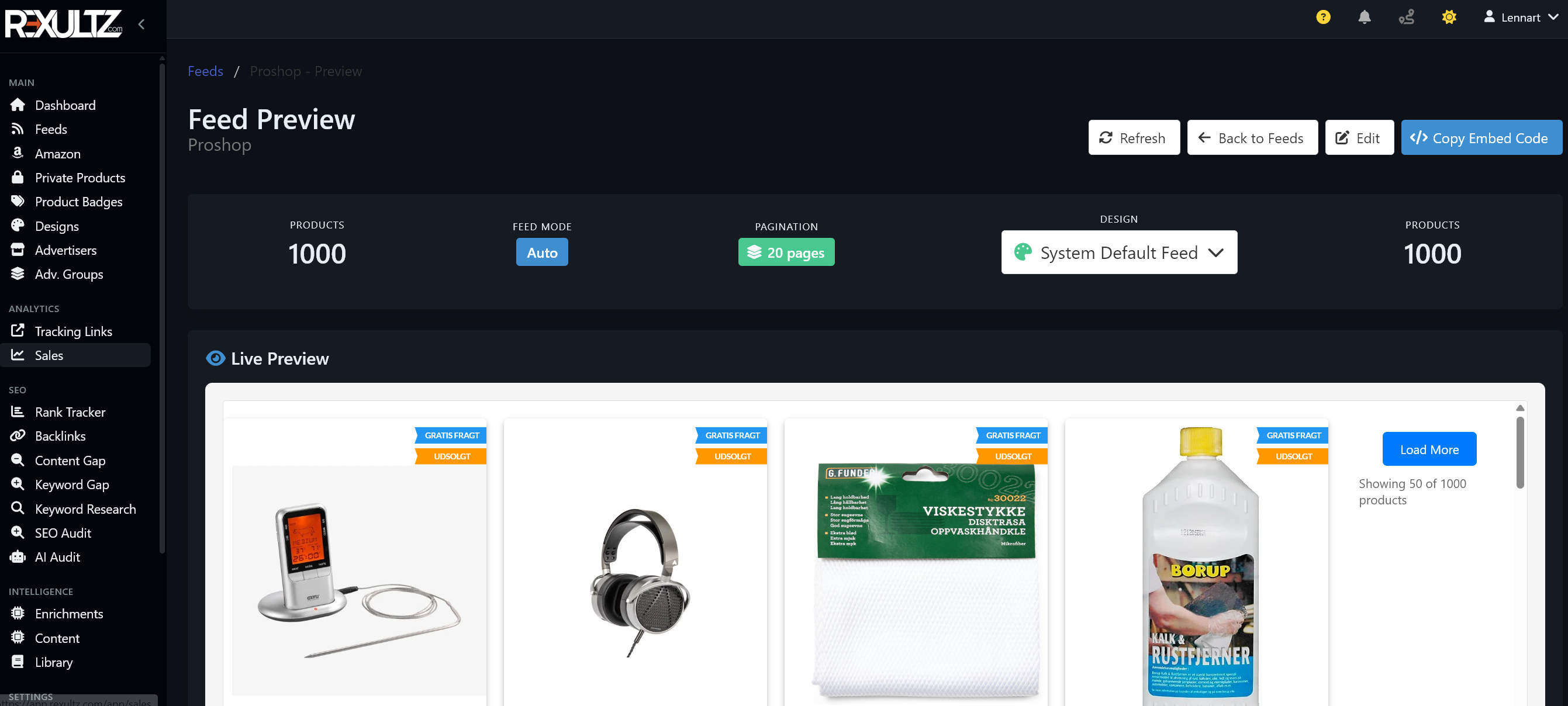
Step 5 — Design how products look
The templated Design Engine lets you style feeds with no code. Choose a format — product list, slider or comparison table — and customise it with a live preview. Product schema markup is built in automatically, so your listings are eligible for rich results in search.
Step 6 — Embed the feed on your site
Feeds work anywhere. Copy the embed snippet, or use the native WordPress Gutenberg block or the Chrome extension's visual placement selector to drop the feed exactly where you want it. Feeds are served ultra-fast from Cloudflare's edge cache, so they load instantly and don't slow your page down.
Full, platform-by-platform instructions live in the Integration Guide.
Step 7 — Connect analytics & watch results
- Link Google Search Console and Google Analytics (GA4) under your site settings — Rexultz pushes sales into GA4 automatically for full revenue attribution.
- Open the Revenue Dashboard to track clicks, conversions and earnings across every network in one place, with 7- and 30-day views and forecasts.
Where to go next
- Integration Guide — embed feeds on WordPress, Shopify, custom sites and more.
- SEO Tools Guide — rank tracking, keyword research and audits, and how they save you money.
- API & AI Connector — query your Rexultz data from Claude, ChatGPT or Cursor.
- Troubleshooting — including how to refresh a cached feed.